
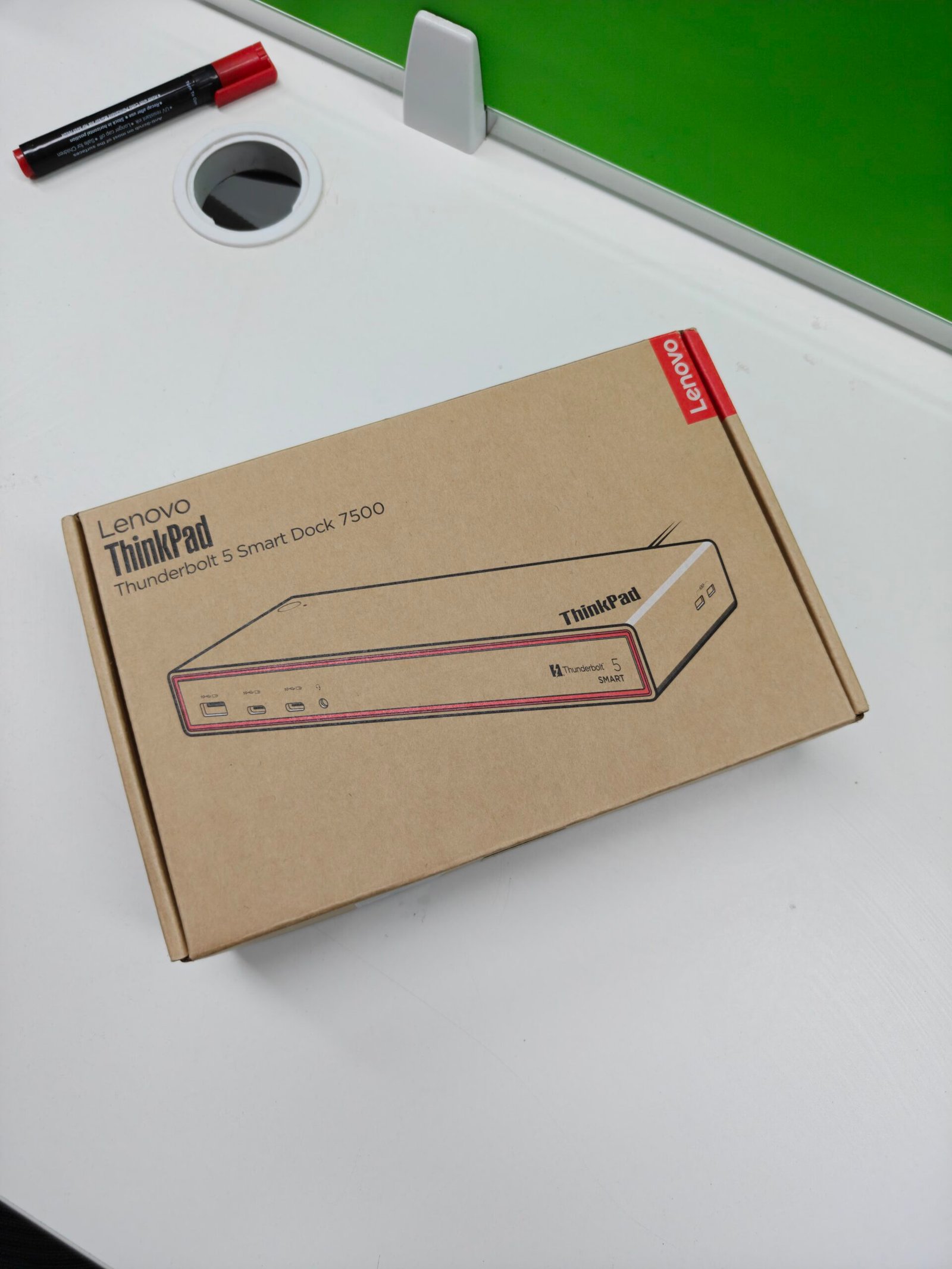
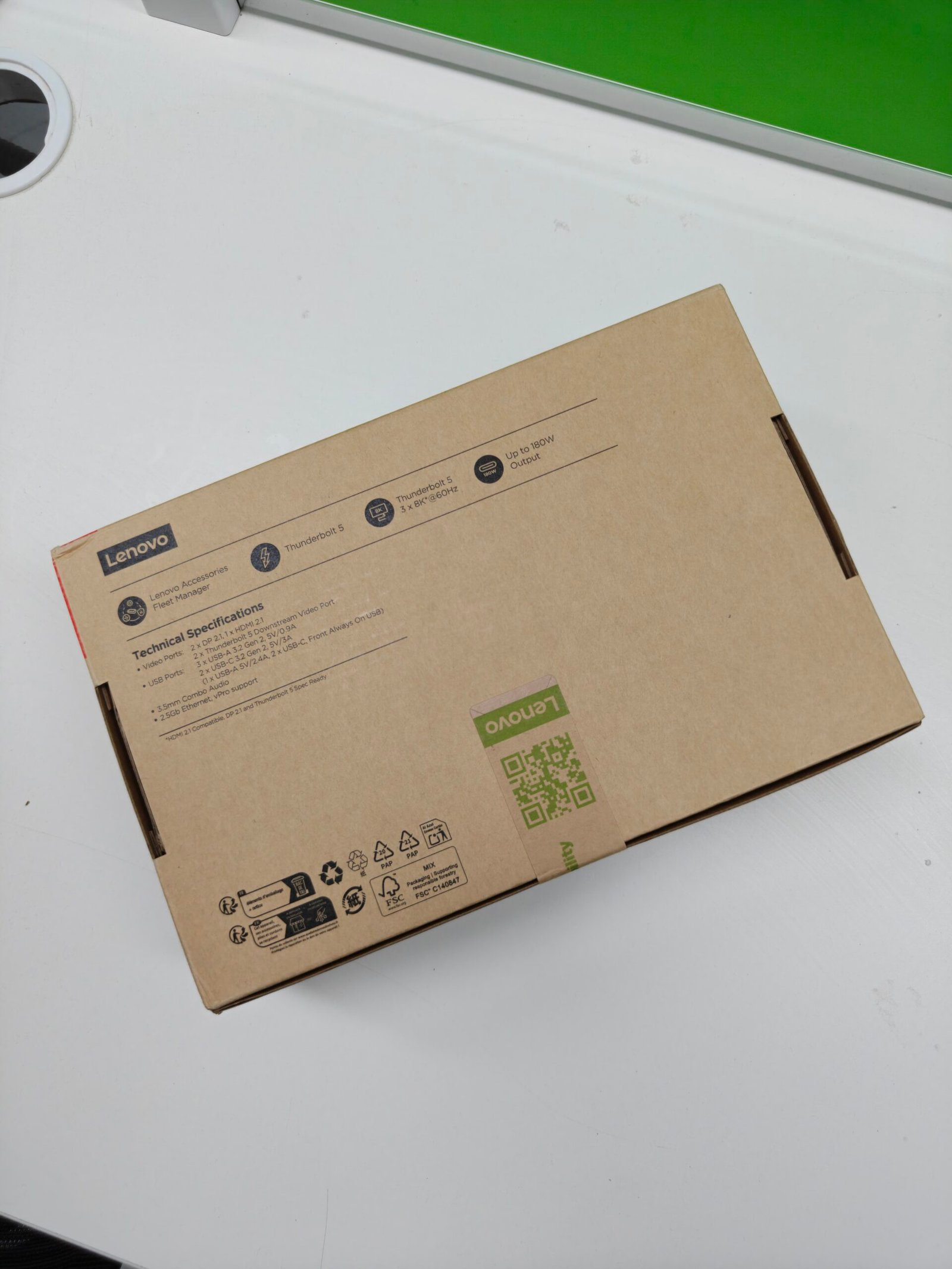
I recently replaced my entire Windows workstation with a more powerful, efficient and portable Apple Macbook Pro (MBP) 16″ 2026 with M5 Pro and 64 GB RAM. Why, because Microsoft Windows sucks and I’ve suffered enough. I am not giving them anymore chance again. But this post is not about Windows or Mac – but a Thunderbolt 5 dock that I bought for the MBP. The Thunderbolt 5 is the fastest and latest of the Apple-Intel co-developed Thunderbolt standard till date, giving a maximum bandwidth of 120 Gbps. TB5 also supports the latest USB4 V2.0 which offers 80 Gbps bidirectional symmetric transfers. The MBP has three of such TB5 ports and all can work independently. At that much bandwidth, it definitely makes sense to expand the ports to a multitude of other ports such as the USB-A for all of your slower peripherals, given that the MBP does not have any of those – which is a good decision. Keep it slim baby.
Docks and hubs exist for that reason and since TB5 is the latest and fastest, the dock options are also limited and expensive. Right around the time when I got my MBP, Lenovo also decided to launch a TB5 dock for INR 32K. Since I wanted something future-proof I did not have to think twice and bought it already. I regret that decision, and I should’ve thought twice!
The dock in question is the Lenovo ThinkPad Thunderbolt 5 Smart Dock 7500. The specs are so good for the price, and it is the cheapest TB5 dock you can buy now. It has everything I needed – two TB5 downstream ports, two USB-C 3.2 ports, three USB-A 3.2 ports, two DisplayPorts and one HDMI port of the latest standards. All of these are powered by a whopping 265W power adapter through USB-C. So there is no short of speed, power or expandability.
My main use case with the dock is to have all my slower peripherals on a single dock connected to the MBP through a single TB5 port, so that I can detach all of the [non-portable] peripherals from the MBP when I am taking the laptop with me. This includes detaching my Lenovo Legion Pro 32UD-10 32 inch, 4K, 240 Hz, OLED monitor. Man, I like spitting specs. This bad boy needs a lot of bandwidth, like 40 Gbps to run. This gets lowered to 20 Gbps when using Display Stream Compression (DSC). The display can be driven through a 20 Gbps USB-C to C cable came with the monitor. It works almost perfectly with the TB5 7500 dock. Connect the monitor to any of the downstream TB5 ports, and it works.
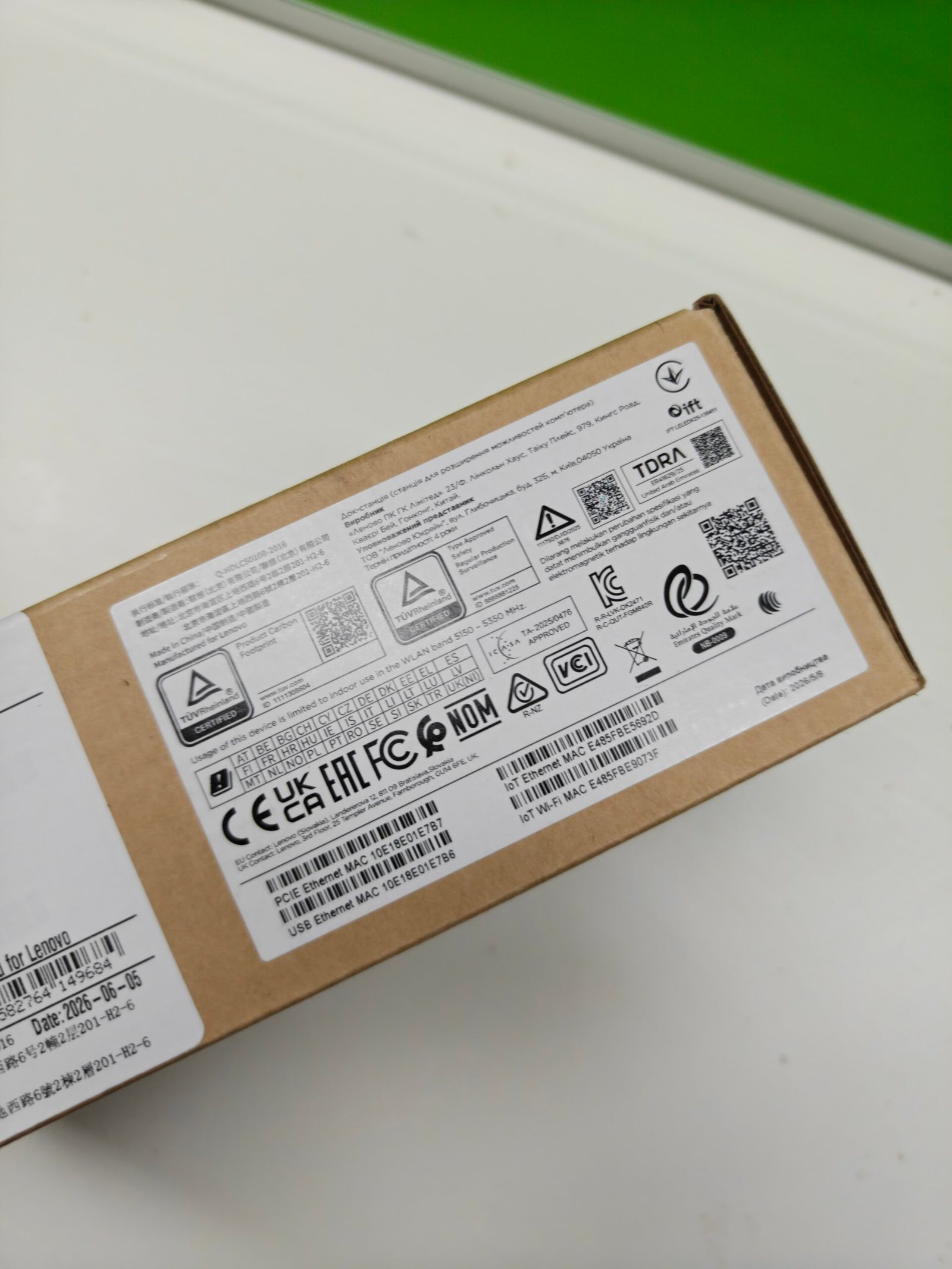

Now what’s the problem? When the MBP goes to sleep and when I wake it up, the dock fails to wake the display from the standby mode. I have to physically unplug the USB-C host cable of the dock from the MBP to get everything working again. That’s a redundant and manual task I have to perform every time. In addition to that, disconnecting the host cable also cuts the power to all of the peripherals connected to the dock, including my four HDDs which don’t like to be turned off abruptly. At times, this unplugging also causes MacOS to panic and crash the window service.
Update for MBP crashing problem
This issue was probably caused by MacOS itself. The MBP had MacOS Tahoe when this issue appeared. Now after upgrading to Golden Gate, I haven’t faced this issue even once. The display takes a few seconds to show but, but panics or crashes so far.
That’s one problem. The other one is how the dock fails to drive more than two displays simultaneously. When you connect two external displays to the DP ports and one to the HDMI port, one of the DP display stops working and you’re left with just two external displays working. Digging up trying to find a solution for this, we came to know that you can update the firmware of the dock and there is a new firmware available.
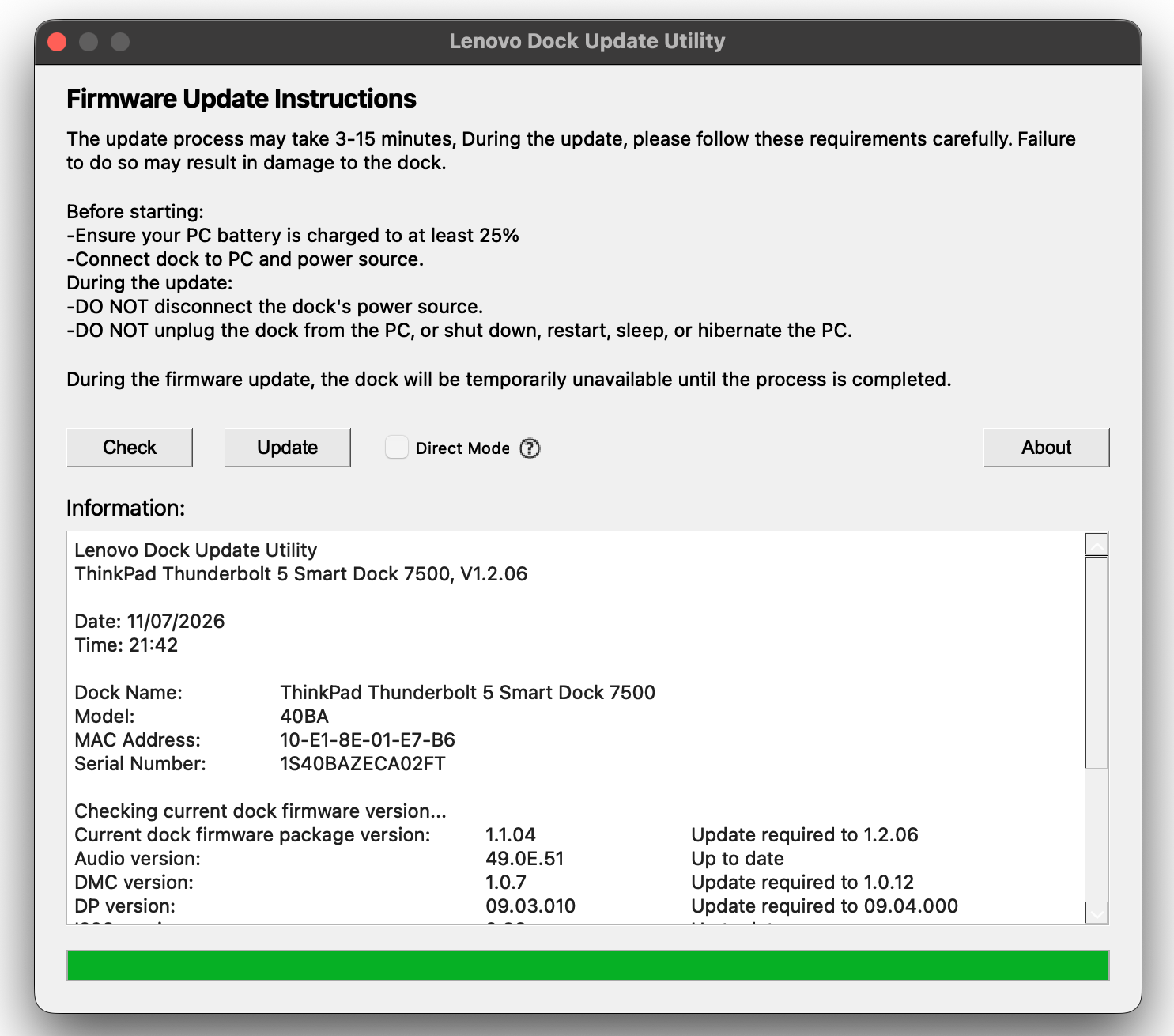
Let’s update some firmware, shall we! We downloaded the firmware update application from the official website for Mac and ran it. The app detects and dock and prints all information about the dock itself and the latest firmware upgrades. But when you click the update button, the processes freezes at 1% and fails saying "Error - Supported dock not found or an unknown error occurred". We tried to update the firmware from a Windows machine as well and it also failed. So you’re having an important functionality problem and you can not update the firmware. Great!

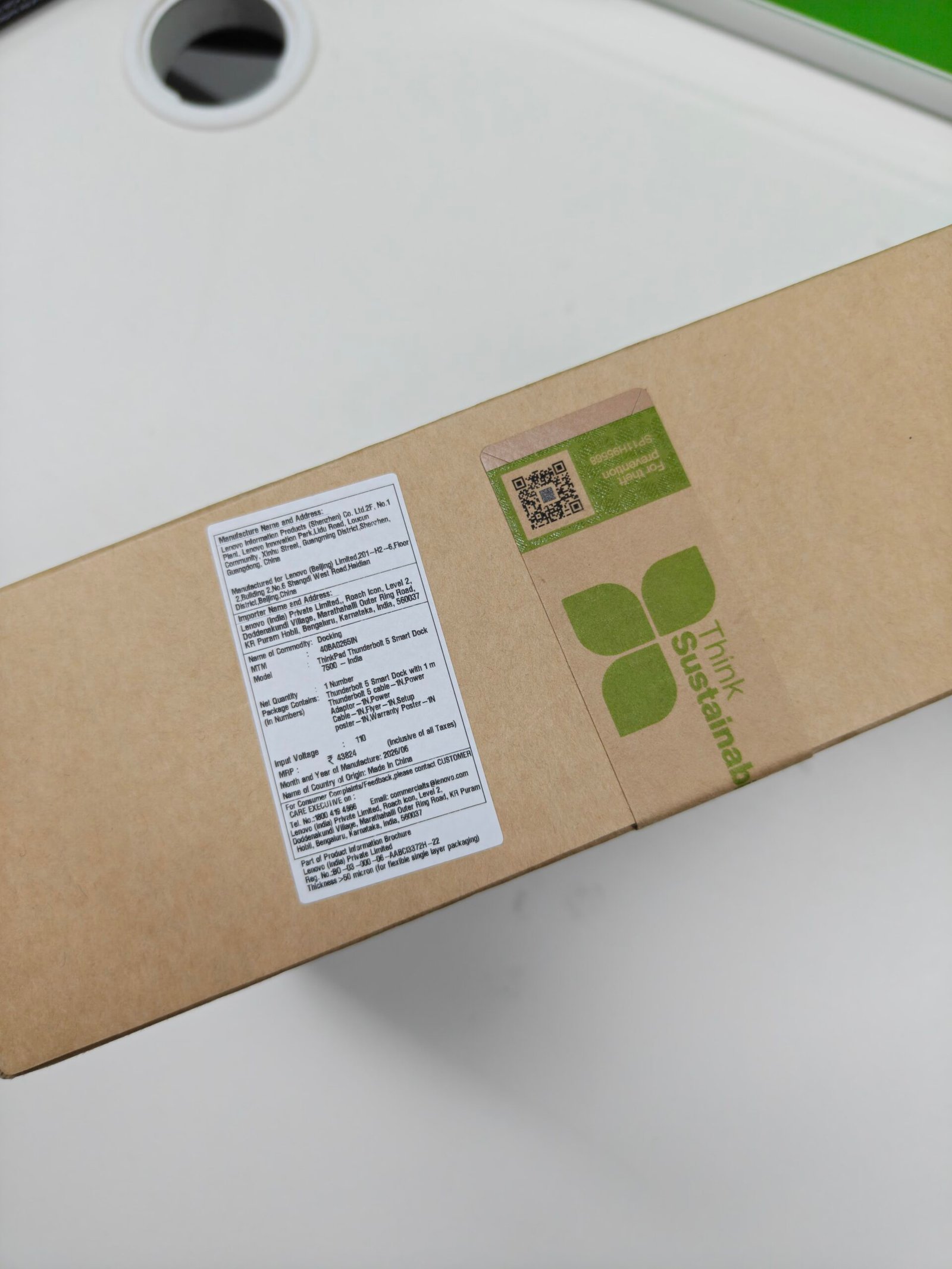
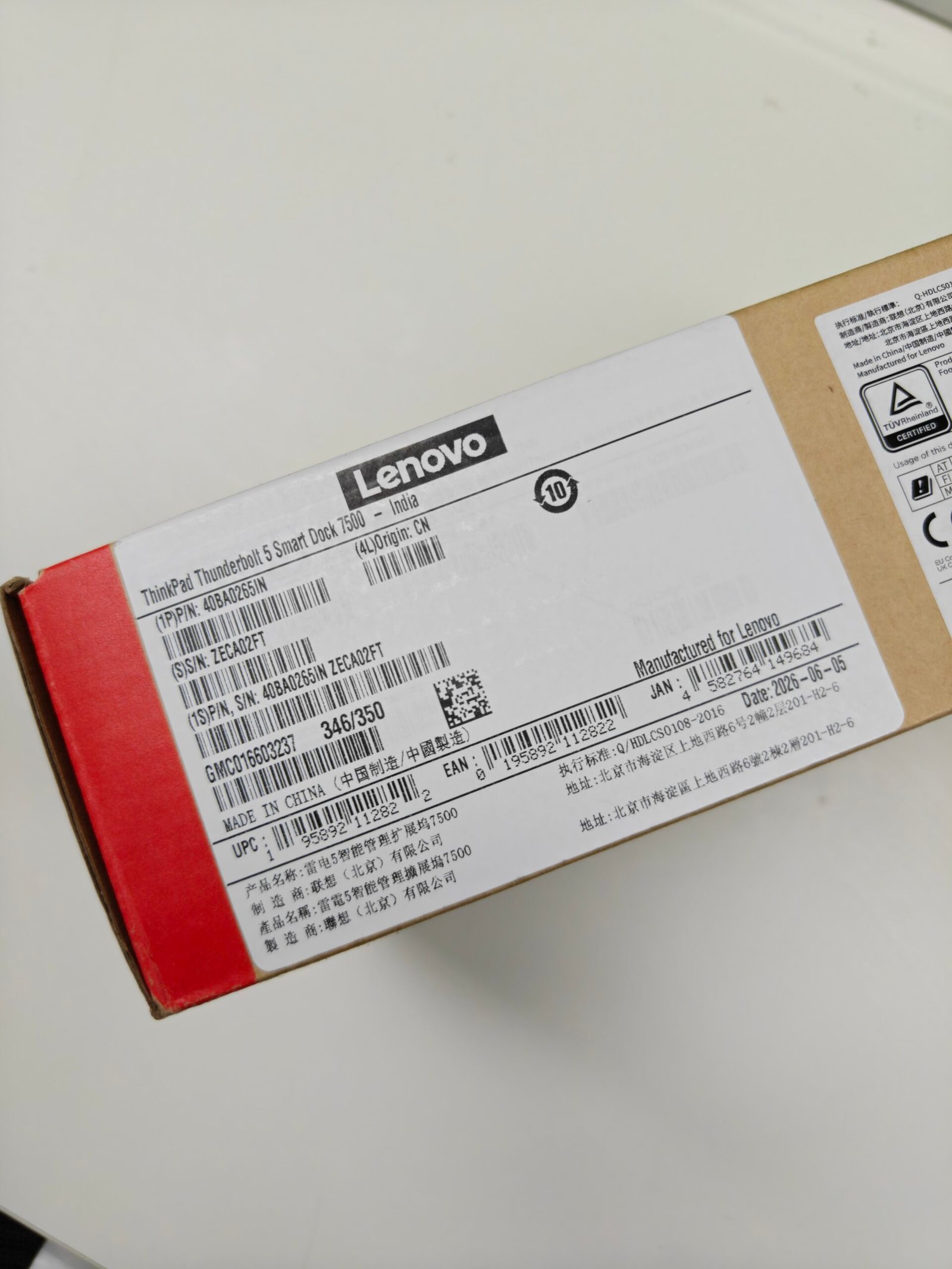
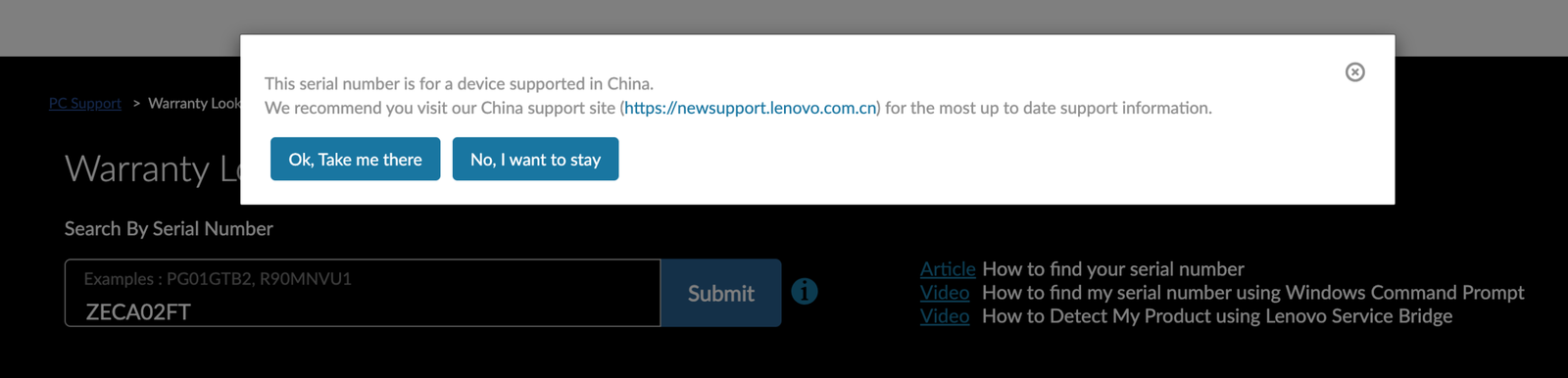
You normally want to go to the official product support page and get some technical help. That’s when I found out that Lenovo India sent me a product with a serial number belonging to the China region, according go them.
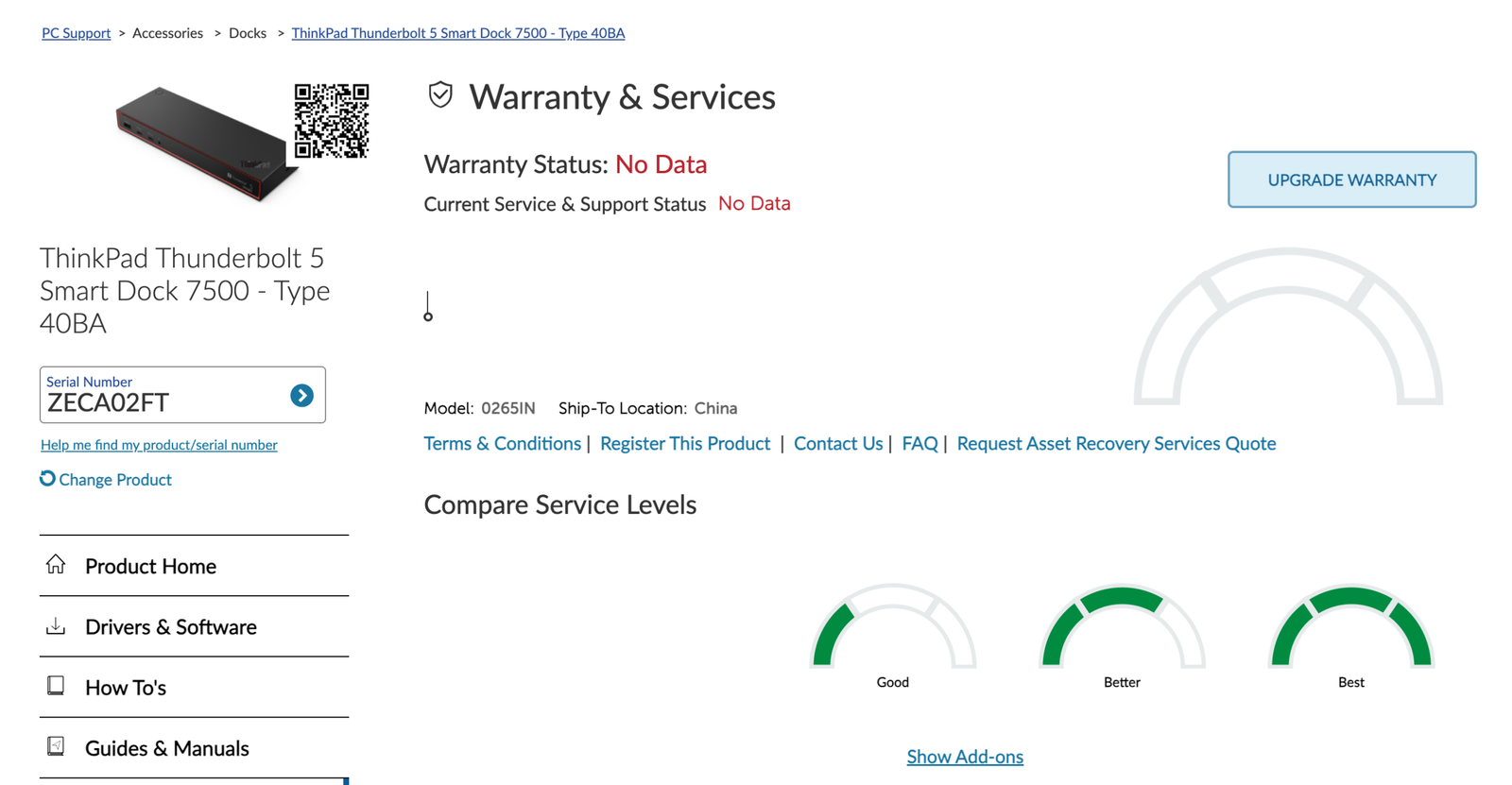
The warranty and support page asks me to go to the Lenovo China website when I actually bought the dock from official Lenovo India website. Could this be causing the firmware update issue, I have no clue. Because the Lenovo support page won’t allow me to look up the product using the serial number, the warranty is also shown as “No Data” or “Out of warranty”. The dock actually comes with 3 year warranty in the India region. Now I am stuck with an expensive product that does not work properly, has no official warranty and can’t update the firmware of.
Contacting Lenovo
At this point, I decided to contact Lenovo India product support team. But that was even harder. Lenovo spends so much in promoting their products and sending you product emails. But they do want their customers to contact them back when they face an issue – that much is the bullshit around contacting technical support. Somehow I managed to create a ticket or something, and I got an email asking for details. They asked for the invoice and I sent them that. Funnily enough, they said they could not find the product serial number in their database, like it’s my problem. And there was so much back and forth emails and at the end nothing happened. Their team was clueless as how to manage the issue and I haven’t heard from them after – as of 03-Oct-2026. I am now going to escalate the issue and see what happens.
Solutions & Workarounds
I found a few workarounds to fix some of the problems I was having with the dock. The first is constant charging of the MBP whenever the dock is connected to it. There is now way you can disable the charging from the dock or from the MBP. But the MBP will only charge from a single port with suitable power limit, and it remembers it even when another source is connected. So what I do it, I first connect the Magsafe connector for charging the MBP and then connect the the dock’s USB-C. Since the MBP was already charging from the Magsafe connector, it will not switch to the USB-C of the dock. I can disconnect the Magsafe connector anytime, and the MBP will run on battery even when the dock is connected. So that fixes the always charging problem.
The next issue was that the MBP was not recognising my external 32 inch Lenovo monitor running from the downstream TB5 port. I also had an 8TB Seagate HDD connected to the second downstream TB5 port. For some reason, moving the HDD from that port to another USB-C 10 Gbps solved the problem. Now the MBP can properly detect the display every after waking up from sleep.
